
Custom Roles
Create a new role
A new role needs only a Role Name and a Role Level; everything else is optional.
- Go to User Management and open the Roles & Permissions tab.
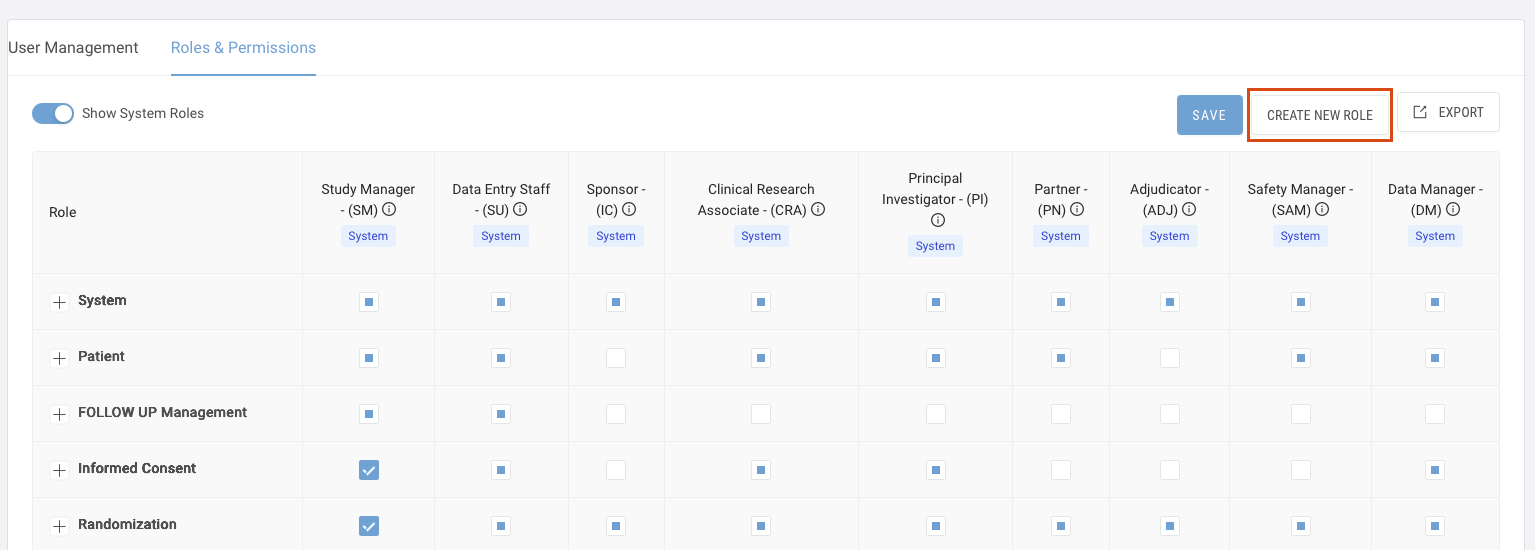
- Click CREATE NEW ROLE (top right, between SAVE and EXPORT).
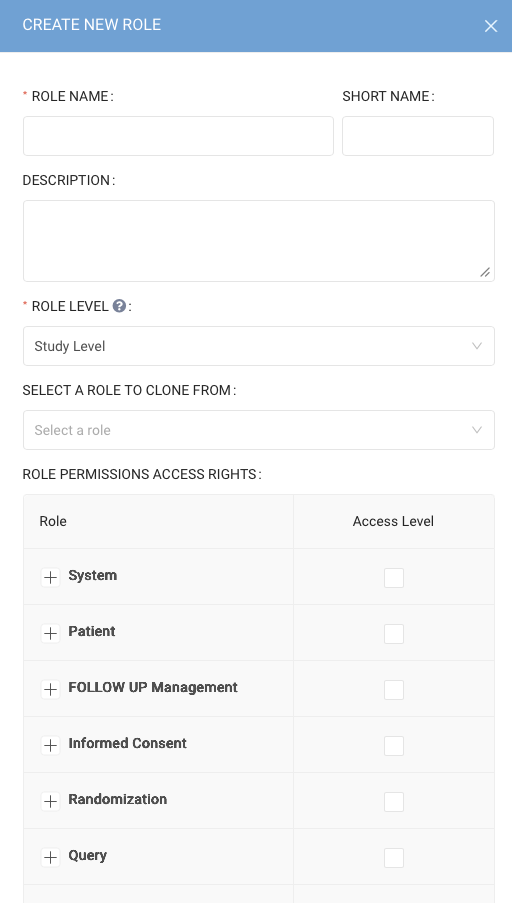
- In the Create New Role panel, fill in the role details:
Field | Required | What to enter |
|---|---|---|
Role Name | Yes | Full name shown in the matrix header, e.g. "Lead Monitor" |
Short Name | No | Abbreviation shown in brackets, e.g. "LM" |
Description | No | What the role is for and who should get it |
Role Level | Yes | Scope of the role; defaults to Study Level (hover the ? icon for details) |
Select a Role to Clone From | No | An existing role whose permissions are copied in as a starting point |
- Under Role Permissions Access Rights, set access per module (System, Patient, FOLLOW UP Management, Informed Consent, Randomization, Query and the rest):
- Tick a module's Access Level box to grant the whole module.
- Or click + beside the module and tick only the sub-permissions the role needs
- Review the permissions, then save the role. The new role appears as a column in the matrix with a green Custom tag.
Edit a role
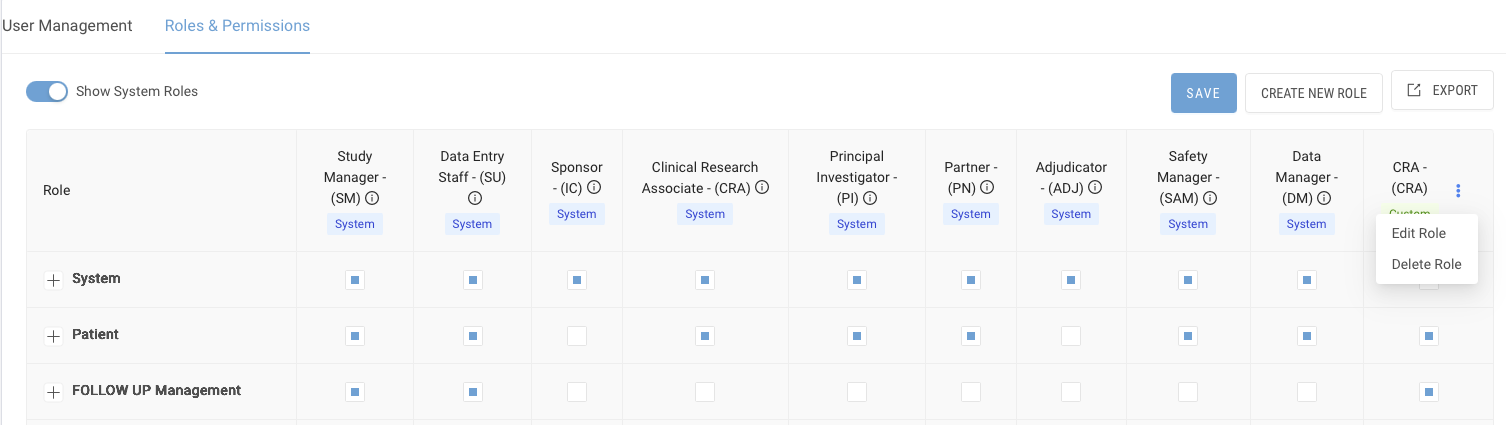
Only custom roles can be edited; system roles show an info icon instead of the ⋮ menu.
- Go to User Management > Roles & Permissions.
- Find the custom role's column (green Custom tag). Turn off Show System Roles to list only custom roles if the matrix is crowded.
- Click the ⋮ menu next to the role name.
- Select Edit Role.
- Update the role name, short name, description or module permissions as needed.
- Save your changes and check the role's column in the matrix shows the new access.
Quick permission changes: you can also tick or clear boxes directly in the role's column in the matrix, then click SAVEat the top of the page.
Delete a role
Deleting removes a custom role and its column from the matrix; system roles cannot be deleted.
Before you delete:
- Check in User Management which users hold this role, and move them to another role first.
- Go to User Management > Roles & Permissions.
- Find the custom role's column (green Custom tag).
- Click the ⋮ menu next to the role name.
- Select Delete Role.
- Confirm the deletion when prompted.
- Check the role's column no longer appears in the matrix.